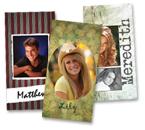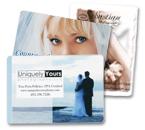


Design Tips


We have many products in Lenzart ROES that you can create unique, one-of-a-kind designs for using either the easy Design Your Own tools or an outside software like Photoshop. Make funky senior rep cards, adorable Baby’s First Year books, stunning composites - the list is endless. There are a few design do’s and don’ts that we’d like to share with you so that you get the most out of your time and investment.
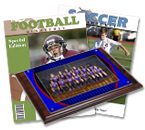
General

  • The number one problem we see is putting critical elements too close to the edge of the templates which results in images and designs getting cut into. So, keep in mind the slight wander inherent in printing on automated equipment and allow 1/8 to 1/4 inch space around the edges. Turn on the grid in the Design Tools in Lenzart ROES and set the grid size to an appropriate value to give you a guide to stay in the clear.
  • If using an image as a background, be sure to make that background image light enough, or it will compete with your primary images. Remember you are designing on a backlit screen and what you are seeing will actually print darker.  Setting the Opacity tool in the Design Tools to 50% usually works for most images.
  • Strokes are a fabulous design tool, but be careful to use them to enhance, not take over. Keep them thin and use a nicely co-ordinating color. In the Design Tools, we like to set the stroke width between .015 and .025 (depending on the size of the piece), and use the dropper tool to pick up a color within the design.
  • The same goes for drop shadows. Keep them subtle, not big and dark so that they take over the design.

All About Fonts

  • One of the best upgrades in Lenzart ROES is the FREE Font Tool option in the Design Tools.  Using this option you can utilize any font installed on your computer to customize your designs to your liking. You can also make each font bold or italic if you choose.
  • What you see is what you get!  The way your fonts look in Lenzart ROES using the Font Tool is how they will look on the final prints - check for size, placement, and color to make sure it's exactly what you want the final product to be.
  • Believe it or not, using more fonts does not make a better design. As irresistable as they are, try to stick with only a few fonts within a piece.
  • If using all caps, be sure to pick a clean, clear font and not one that is curly or scripty. Also, be careful when using all caps - it could come across to the viewer as yelling.
  • Very thin fonts, or fonts that have very thin parts, do not print well
  • If making your text run vertically, have it read sideways instead of stacking letters on top of each other:


Using Free Templates

  • Remember to check out all of Lenzart's free templates that will truly save you hours of design time.  Find them in the Composites section of the Sizes menu in the Prints and Finishes catalog of Lenzart ROES.
  • All of these templates are completely editable, so start with one that's "close" and then add, delete, move or change size and placement of the image boxes any way you'd like.
  • All this variety means that your template possibilities are endless...But - any of your uniquely designed studio templates can be saved as well. After creating a template, click the Save button in the Design Tools and name the template pressing Enter after you type the name.  This will save the template to the MyTemplates section, which will be opened each time you enter the Design Tools.
  • Don't forget to "personalize" the look.  If your client has a color theme, an invitation to be included, a favorite phrase or poem - include it.  This type of personalization will help your services stand out.
  • Brainstorm some unique "touches".  Your design backgrounds can come from all types of sources.  Handmade papers, scenic images, fabric, even wallpaper!


Good design pieces tend to be clean, simple and consistent. The whole idea is to communicate - a feeling, a message, an idea - make sure that is what you are doing. There are tons of designs elements that can be used, don’t feel you have to use all of them.